How to Set Up 2FA for Crypto (Step by Step)
A strong password isn't enough to protect a crypto exchange account. Two-factor authentication (2FA) adds a second lock so that even if someone steals your password, they still can't get in. This guide walks through setting up 2FA the right way — and avoiding the common mistakes that leave people exposed.
The 20-second version
Turn on 2FA everywhere you can. Use an authenticator app or a hardware security key — not SMS text codes, which can be hijacked through a 'SIM swap'. Save your backup codes offline, and never type a code into a link someone sent you.
What 2FA is and why it matters
Two-factor authentication means logging in needs two things: something you know (your password) and something you have (a code from your phone or a physical key). Even if an attacker phishes your password, the second factor stops them cold.
Crypto accounts are a prime target because transactions can't be reversed. Strong 2FA is one of the cheapest, highest-impact steps you can take — alongside learning how to avoid crypto scams.
The types of 2FA, ranked
- Hardware security key (e.g. a YubiKey) — the strongest. Phishing-resistant because it only works on the real site.
- Authenticator app (Google Authenticator, Authy, or your password manager) — generates a fresh 6-digit code every 30 seconds. Strong and free.
- SMS text codes — better than nothing, but vulnerable to 'SIM swapping', where a criminal ports your number to their phone. Avoid for crypto if you can.
SMS is the weak link
SIM-swap attacks let criminals receive your text codes by tricking your mobile carrier. If an exchange only offers SMS 2FA, treat it as a last resort and never rely on it for large balances.
How to set up app-based 2FA
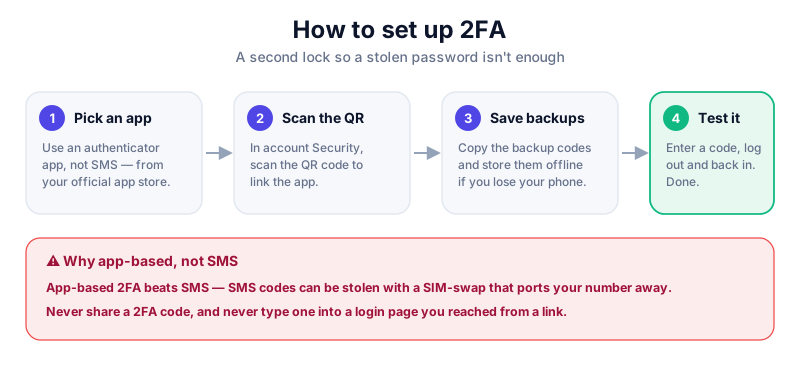
- Install a reputable authenticator app from your phone's official app store.
- In your exchange or wallet settings, find 'Security' and choose 'Authenticator app' (often shown as TOTP or Google Authenticator).
- Scan the QR code with your app. A 6-digit code will start appearing and refreshing every 30 seconds.
- Before finishing, copy down the backup codes the service shows you and store them offline — these get you back in if you lose your phone.
- Enter the current 6-digit code to confirm, then test by logging out and back in.
Save the secret, not just the app
When you scan the QR code, also note the text 'setup key' it offers. Stored offline, it lets you re-add the account to a new phone if your old one is lost or broken.
Common 2FA mistakes
- Relying on SMS for accounts holding real money.
- Losing access because you never saved your backup codes.
- Typing a 2FA code into a fake login page from an email link — always navigate to the site yourself.
- Keeping screenshots of your QR setup code in your phone's photo roll, where malware could find it.
Most crypto is lost to a hacked exchange login, not the market. A password manager gives every account a unique password and built-in 2FA — NordPass makes it painless. (Never store a seed phrase in any app, though.)
Key takeaways
- 2FA adds a second lock so a stolen password isn't enough.
- Prefer a hardware key or authenticator app over SMS codes.
- Save your backup codes offline before you finish setup.
- Never enter a 2FA code into a login page you reached from a link.
Frequently asked questions
Which authenticator app should I use?
Any well-reviewed one from your official app store works. Many password managers also build TOTP 2FA in, which keeps everything in one place.
What happens if I lose my phone?
You use the backup codes or setup key you saved during setup to restore access. This is exactly why saving them offline matters.
Is 2FA enough on its own?
It's essential but not the whole picture. Pair it with a unique password, a hardware wallet for savings, and good scam awareness.
Keep reading
How to Avoid Crypto Scams: The Cornerstone Safety Guide
The common crypto scams — fake support, phishing, giveaways, romance and rug pulls — and the simple habits tha
Crypto OpSec Basics: Stay Private and Safe
Operational security for everyday crypto users: how to reduce your attack surface, protect your privacy, and a
How to Store Bitcoin Safely (Step by Step)
Keep your Bitcoin safe from hackers and mistakes: hot vs cold wallets, hardware wallets, seed-phrase backups,