How to Set Up MetaMask (Step by Step)
MetaMask is the most widely used wallet for Ethereum and the wider Web3 world — a browser extension and phone app that lets you hold tokens and connect to apps yourself, with no company holding your funds. This guide walks through setting it up safely and side-steps the mistakes that catch most newcomers.
The 20-second version
Install MetaMask only from metamask.io or your official app store. Create a wallet, then write your 12-word Secret Recovery Phrase on paper and store it offline. That phrase controls your funds — never type it into a website or share it with anyone.
Before you start
MetaMask is a self-custody wallet, which means you — not a company — hold the keys. That puts you in full control, but it also means there is no support line to reset a lost password and no one to reverse a mistaken transfer. The single most important step is backing up your recovery phrase properly.
- A device you trust: a desktop browser (Chrome, Firefox, Brave, Edge) or a phone.
- Pen and paper for your recovery phrase — not a notes app.
- A few quiet minutes with no distractions.
Step 1: Install MetaMask safely
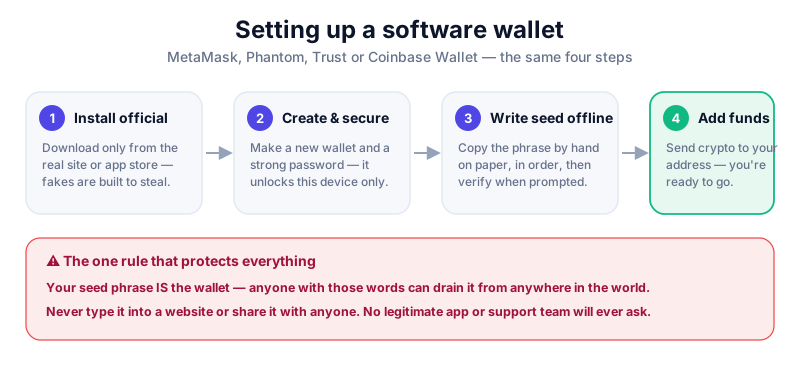
Only ever download MetaMask from the official source: metamask.io for the extension, or the Apple App Store / Google Play for the app. Fake MetaMask extensions and apps appear regularly and are designed to steal your phrase.
Check before you click
Search-engine ads frequently impersonate wallet brands. Type metamask.io directly, verify the extension is published by 'MetaMask', and check the review count. If anything looks off, stop.
Step 2: Create your wallet
- Open MetaMask and choose 'Create a new wallet'.
- Set a strong password. This unlocks the app on this device only — it is not your backup.
- When MetaMask reveals your 12-word Secret Recovery Phrase, write it on paper by hand, in order.
- Confirm the phrase when prompted, then store the paper offline in a safe place — ideally two copies in two locations.
- Never photograph the phrase, screenshot it, or type it into any computer, cloud note, or password manager.
Your Secret Recovery Phrase is everything
Anyone with those 12 words can drain your wallet from anywhere in the world. MetaMask support will never ask for it. No legitimate app or person ever will. If a site or 'helper' asks you to enter it, it is a scam.
Step 3: Add networks and connect safely
MetaMask starts on Ethereum. You can add other networks (such as Polygon or Arbitrum), but only use network details from official documentation. To use a DeFi app or NFT marketplace, you 'connect' your wallet — review every connection and signature request before approving it.
- Read each pop-up: a transaction spends funds; a signature can grant spending permission.
- Disconnect from sites you no longer use and revoke old token approvals periodically.
- For larger holdings, pair MetaMask with a hardware wallet so your keys stay offline.
MetaMask can connect to a Ledger so transactions are signed offline on the device. The Ledger Nano X is our top pick — read our full review before you buy.
Key takeaways
- Only install MetaMask from metamask.io or an official app store.
- Write your 12-word recovery phrase on paper and store it offline.
- No one legitimate will ever ask for your recovery phrase.
- For larger amounts, connect MetaMask to a hardware wallet.
Frequently asked questions
Is MetaMask free?
Yes, the wallet is free to install and use. You only pay network 'gas' fees when you make transactions, plus a small built-in fee if you swap tokens inside the app.
What happens if I forget my MetaMask password?
The password only unlocks the app on your device — it isn't your backup. You can reinstall MetaMask and restore your wallet using your 12-word Secret Recovery Phrase, which is why protecting that phrase matters so much.
Can MetaMask hold Bitcoin?
MetaMask is built around Ethereum and EVM-compatible networks. It is not designed for native Bitcoin. To hold Bitcoin, see how to store Bitcoin safely.
Keep reading
How to Set Up Phantom Wallet (Step by Step)
Set up the Phantom wallet for Solana and beyond: install it safely, back up your recovery phrase, and avoid th
How to Set Up Trust Wallet (Step by Step)
Set up the Trust Wallet mobile app safely: download it from the right place, back up your recovery phrase, and
What Is a Seed Phrase? (And Why You Must Never Share It)
A plain-English guide to seed phrases: what they are, how they back up your crypto wallet, how to store one sa